









Have you ever faced a sudden Windows crash or serious malware infection? If so, you know how stressful those moments can be. Luckily, there’s a tool that can help you out during these times: a Linux live USB. This handy little device can be a lifesaver, and in this article, we’ll explore how it works, why it’s effective, and how you can create one for your own use.
Table of Contents
- What is a Linux Live USB?
- Why Use a Linux Live USB for Windows Emergencies?
- How to Create a Linux Live USB
- How to Fix Windows with Linux USB
- Best Linux Distributions for Your USB
- Conclusion
- Frequently Asked Questions (FAQs)
What is a Linux Live USB?
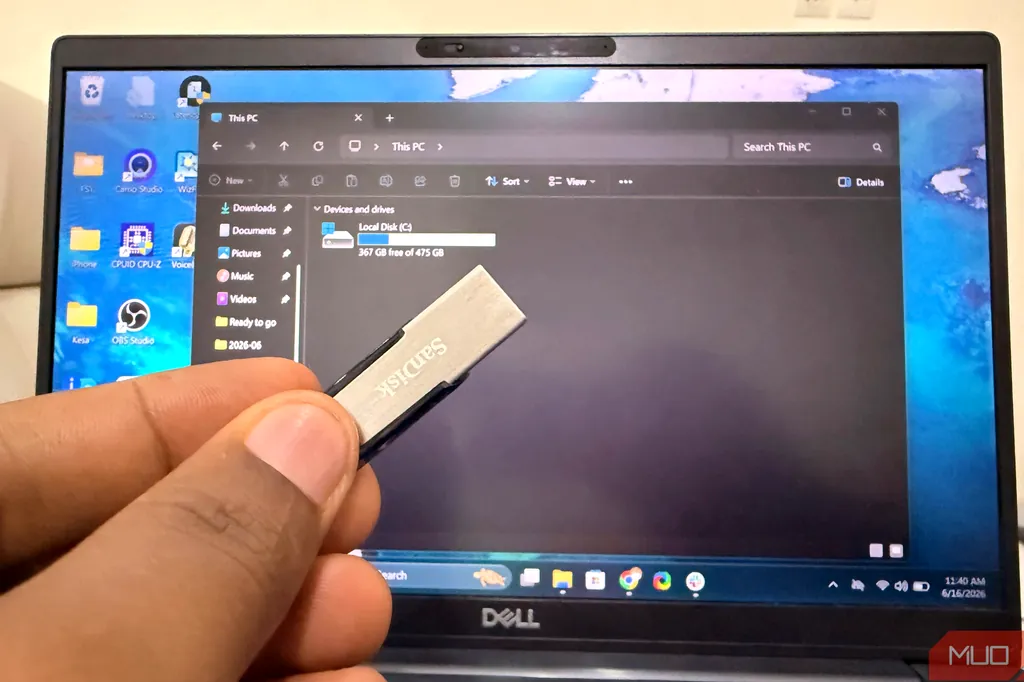
A Linux live USB is a small flash drive that contains a bootable version of a Linux operating system. Unlike installing Linux on your hard drive, a live USB allows you to run Linux directly from the USB stick without affecting your existing Windows system. You can use it to troubleshoot, recover files, or even browse the internet securely.
Why Use a Linux Live USB for Windows Emergencies?
Windows can be unpredictable. Crashes and malware attacks often happen when you least expect them. In these situations, having a Linux live USB can be incredibly useful. One major reason is that most malware is designed specifically for Windows. When you boot into a Linux environment, that malware becomes inactive, allowing you to access your files and perform repairs without fear of further spreading the infection.
The Benefits of Using a Linux Live USB
- Access to Files: You can retrieve important documents from a failing Windows system.
- Repair Tools: Many Linux distributions come with built-in tools to diagnose and fix common issues.
- Safe Browsing: You can use the Linux environment to safely browse the web and download antivirus software.
How to Create a Linux Live USB
Creating a Linux live USB is simpler than you might think. Here’s a step-by-step guide to get you started:
What You’ll Need
- A USB flash drive (at least 4GB).
- A computer with internet access.
- A Linux ISO file (you can choose a distribution like Ubuntu, Mint, or Fedora).
- Rufus or Etcher software to create the USB drive.
Step-by-Step Instructions
- Download the Linux ISO file of your choice from the official website.
- Install Rufus or Etcher on your Windows computer.
- Insert the USB flash drive into your computer.
- Open Rufus or Etcher, select your USB drive, and choose the downloaded ISO file.
- Click ‘Start’ and wait for the process to finish.
- Once done, safely eject the USB drive.
How to Fix Windows with Linux USB
So, how do you actually use your Linux live USB to fix Windows? Here’s a straightforward approach:
Booting from the USB
1. Insert your Linux live USB into the computer that has Windows issues.
2. Restart the computer and enter the BIOS settings (usually by pressing F2, F10, or DEL during startup).
3. Change the boot order to prioritize booting from the USB drive.
4. Save your changes and exit the BIOS. Your computer should boot into the Linux environment.
Using Linux to Repair Windows
Once you’re in the Linux environment, you can:
- Access your Windows files and back them up.
- Run diagnostic tools to check hard drive health.
- Use antivirus software available in Linux to scan and clean your hard drive.
Best Linux Distributions for Your USB
There are several Linux distributions that work great as a live USB. Here are a few popular choices:
- Ubuntu: User-friendly and widely supported.
- Mint: Great for beginners transitioning from Windows.
- Fedora: Known for its cutting-edge features.
- Knoppix: Specifically designed for recovery and troubleshooting.
Conclusion
Having a Linux live USB ready to go can save you from panic during a Windows emergency. By taking a few simple steps, you can create a tool that will help you access files, troubleshoot issues, and even remove malware. Embracing this dual-OS approach not only enhances your cybersecurity but also gives you peace of mind knowing you have a backup plan for those unexpected moments. If you’re interested in learning more, check out this article about how to fix Windows with Linux USB.
Frequently Asked Questions (FAQs)
1. What is a Linux live USB used for?
A Linux live USB is used for troubleshooting, recovering files, and securely browsing the internet without affecting your existing operating system.
2. Can I use any USB drive for Linux live USB?
Yes, you can use any USB flash drive that has sufficient storage (at least 4GB) and is compatible with your computer.
3. Is it safe to use a Linux live USB?
Yes, using a Linux live USB is safe and can help protect your files from Windows malware while you troubleshoot issues.
4. How do I boot from a Linux live USB?
To boot from a live USB, insert it into your computer, restart, and change the boot order in the BIOS settings to prioritize the USB drive.
5. Can I install Linux from a live USB?
Yes, you can install Linux directly from a live USB if you choose to do so, allowing you to replace or dual-boot with your existing operating system.